Transforming a PC into a multimedia box running Android TV involves choosing between several installation methods, each with its own hardware and software constraints. The central question is: should you burn an ISO to the internal disk, use a bootable USB drive, or opt for a virtual machine? The differences in terms of compatibility, data persistence, and DRM support vary significantly depending on the chosen approach.
Comparison of Methods to Install Android TV on PC
Before flashing anything, the choice of method determines the entire experience. Here is a summary table of the three common approaches.
| Method | Data Persistence | Impact on Internal Disk | DRM Compatibility | Difficulty |
|---|---|---|---|---|
| Installation on Disk (dual-boot) | Yes | Partitioning required (FAT32 + EXT4) | Variable depending on the build | High |
| Persistent Bootable USB Drive | Yes (dedicated partition) | None | Variable depending on the build | Medium |
| Virtual Machine (VirtualBox, etc.) | Yes | Virtual disk file | Very limited | Low |
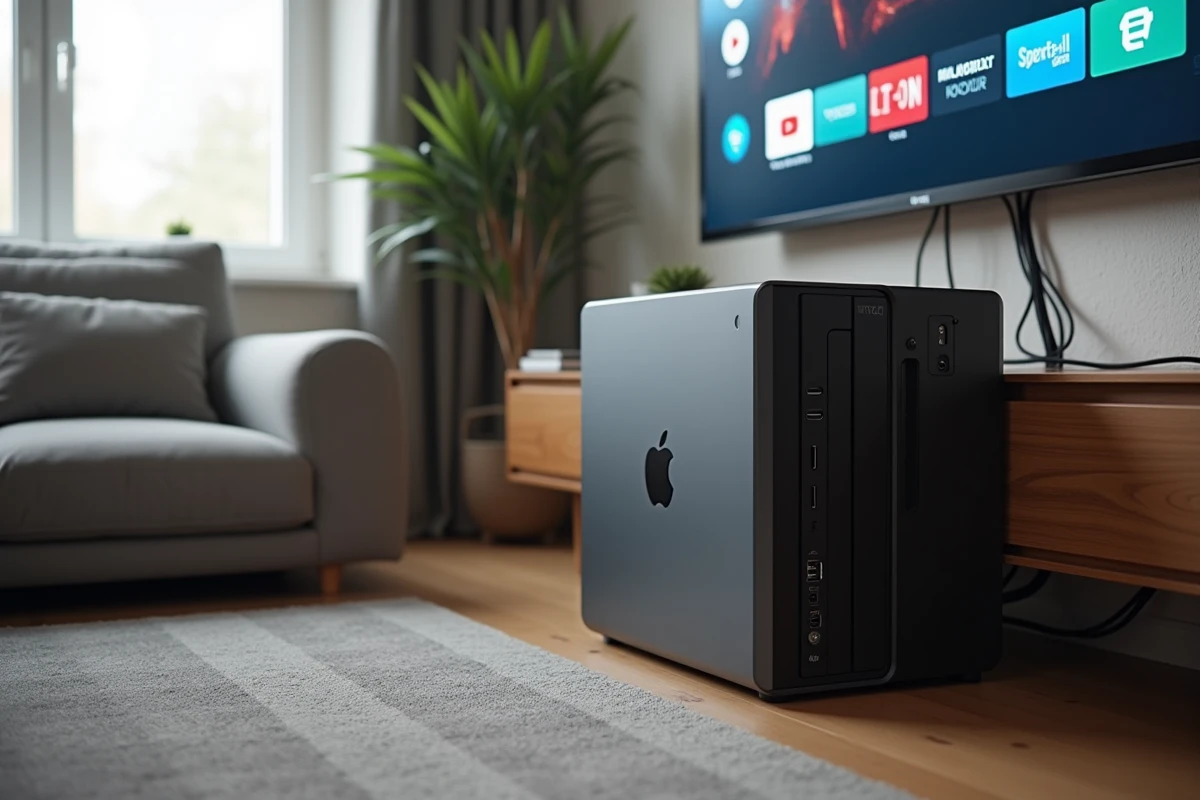
The persistent bootable USB drive stands out with a clear advantage: no modification to the internal disk of the PC. You plug it in, boot up, unplug it, and the PC returns to its original system.
On the other hand, installation on disk offers better raw performance since the system reads and writes directly to the main storage. The virtual machine remains a good testing ground, but support for graphics acceleration and DRM is often insufficient for smooth streaming.
For those who want to install Android TV on a PC without risking their Windows or Linux environment, the persistent USB method represents the best compromise between simplicity and reversibility.
Bootable Android TV USB Drive: Partitioning and Configuration in Rufus
Recent tutorials favor a two-partition approach on the USB drive. The first partition contains the boot files, while the second (formatted in exFAT) stores persistent data: Google accounts, downloaded applications, streaming settings.
Rufus handles this preparation. The critical point lies in the choice of partition scheme and boot mode:
- GPT + UEFI for recent PCs (manufactured after around 2015), which boot natively in UEFI
- MBR + Legacy BIOS for older machines that lack UEFI support or whose firmware has issues in GPT mode
- Disabling Secure Boot in the BIOS on most recent motherboards, otherwise the PC will refuse to boot from an unsigned system
Selecting the wrong combination (for example, GPT on a Legacy BIOS machine) results in a black screen at boot with no explicit error message. This is the primary cause of failure reported by users on specialized forums.
Accessing the Boot Menu
The access key varies by manufacturer (F2, F12, Delete, Escape). On some laptops, Windows’ fast startup prevents reaching the menu. You then need to go through Windows recovery settings to force a restart on the USB device.
Android TV x86 Builds: Choosing a Recent and Maintained ISO
The majority of French-language guides still refer to generic Android-x86 ISOs, sometimes dated several years back. The issue is: graphics and network drivers become outdated, leading to incompatibilities with current hardware (Wi-Fi not detected, absent GPU acceleration, non-functional Bluetooth).
The Android TV x86-64 project, hosted on SourceForge, offers more recent builds based on Android TV. These versions include the native Android TV launcher, the TV-oriented Google Play Store, and an interface designed for navigation with a remote control or keyboard.
DRM and Streaming: The Structural Limit
Netflix, Disney+, and most streaming platforms require Widevine L1 certification to stream content in high definition. Android TV builds installed on PCs generally only achieve L3 level, limiting the resolution to standard definition.
HD streaming on a PC running Android TV is contingent on the Widevine certification level of the build used. Some applications like YouTube or services that do not check the Widevine level work without restrictions. For others, you must accept this limitation or turn to complementary solutions (Kodi, VLC).
Minimum Hardware Configuration and HDMI Connectivity
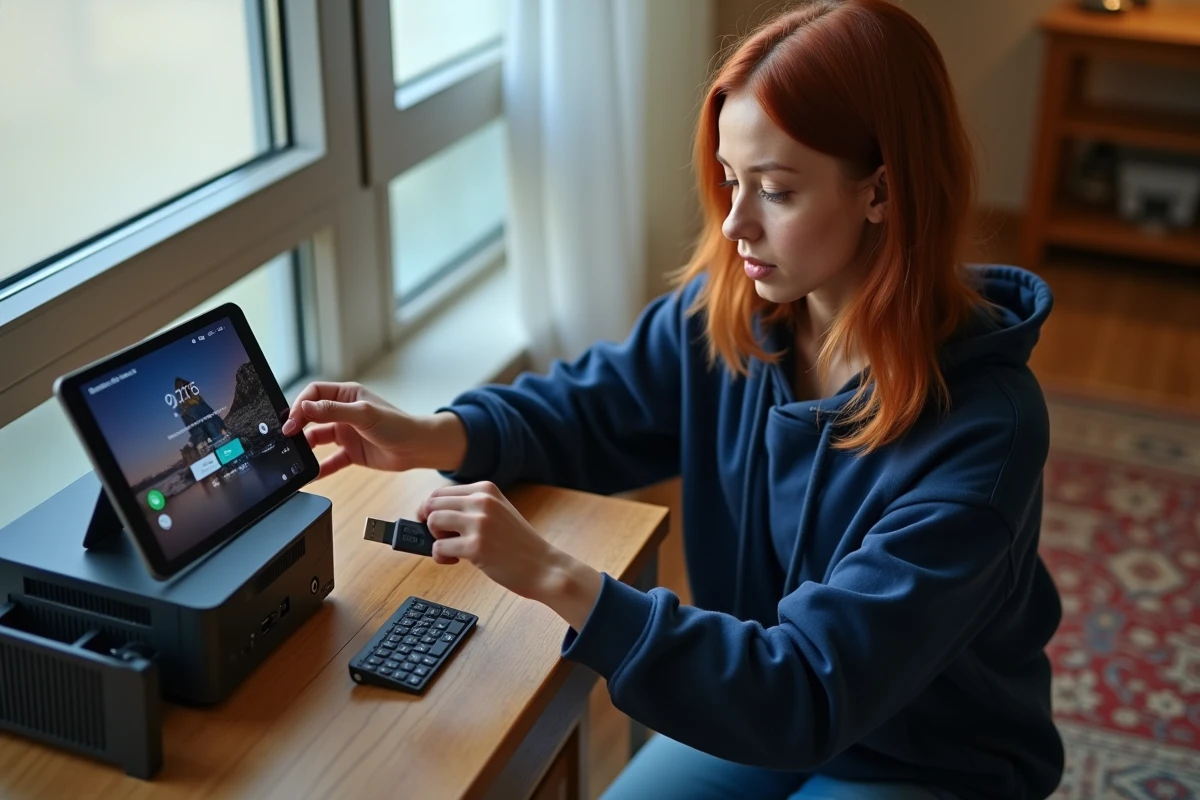
An old desktop PC or mini-PC is sufficient in most cases. Android TV x86 works with modest processors, provided there is a usable video output.
- x86-64 bit processor (Intel or AMD), even older generation
- HDMI or DisplayPort output to the TV (a VGA-HDMI adapter works but may degrade the audio signal)
- Available USB port for the boot drive, plus one free port for a wireless remote receiver or Bluetooth dongle
- Wired network connection (Ethernet) recommended for streaming stability, as Wi-Fi heavily depends on the chipset and support by the Android build
The remote control remains a often overlooked point. Android TV is designed for directional navigation (up, down, left, right, select). A keyboard and mouse work, but the user experience is degraded in applications optimized for remote control. Wireless mini-keyboards with built-in touchpads make for a good middle ground.
Software Alternatives When Android TV Fails to Boot
On some hardware configurations, no Android TV build manages to boot correctly (frozen screen, reboot loop, lack of graphics acceleration). In this case, installing a lightweight Linux distribution with Kodi pre-installed (LibreELEC, for example) produces a comparable result in terms of media interface, often with superior hardware compatibility.
The Google Play Store and native Android applications will not be available, but Kodi supports almost all video formats, streaming extensions, and can be controlled with the remote via the CEC protocol if the TV supports it.
A PC that refuses Android TV can become a high-performance multimedia box under LibreELEC in less than ten minutes. The choice between the two ultimately depends on the desired application ecosystem: Google Play Store on one side, Kodi extensions on the other.